How to automatically post your Dribbble shots to Pinterest
March 2026 · 5 min read
Most designers post to Dribbble. Few post to Pinterest. It's a missed opportunity. Not because Pinterest is trendier, but because the two platforms reach completely different people.
Dribbble is designers watching designers.
Pinterest is 500 million people looking for things to make, buy, build, and commission.
Your next client is probably on Pinterest. They're just not on Dribbble.
This guide covers why it's worth being on both, why doing it manually doesn't last, and how to wire them together so you never have to think about it again.
Why designers should be on Pinterest
Pinterest is a search engine, not a feed. When someone types "minimalist logo design" or "brand identity for coffee shop," they don't get a tweet that disappears in four hours. They get boards that were built over years. Your work can surface weeks or months after you post it.
That changes the math. On Dribbble, a shot gets attention in the first 24 hours or not at all. On Pinterest, the timeline is inverted. Older, well-described pins often outperform newer ones because they've had time to accumulate saves and clicks. Design inspiration consistently ranks among the most searched categories on the platform.
The audience is different too. Dribbble builds reputation among peers. Pinterest builds visibility with people who don't know what Dribbble is: clients, founders, small business owners looking for a designer. You want both.
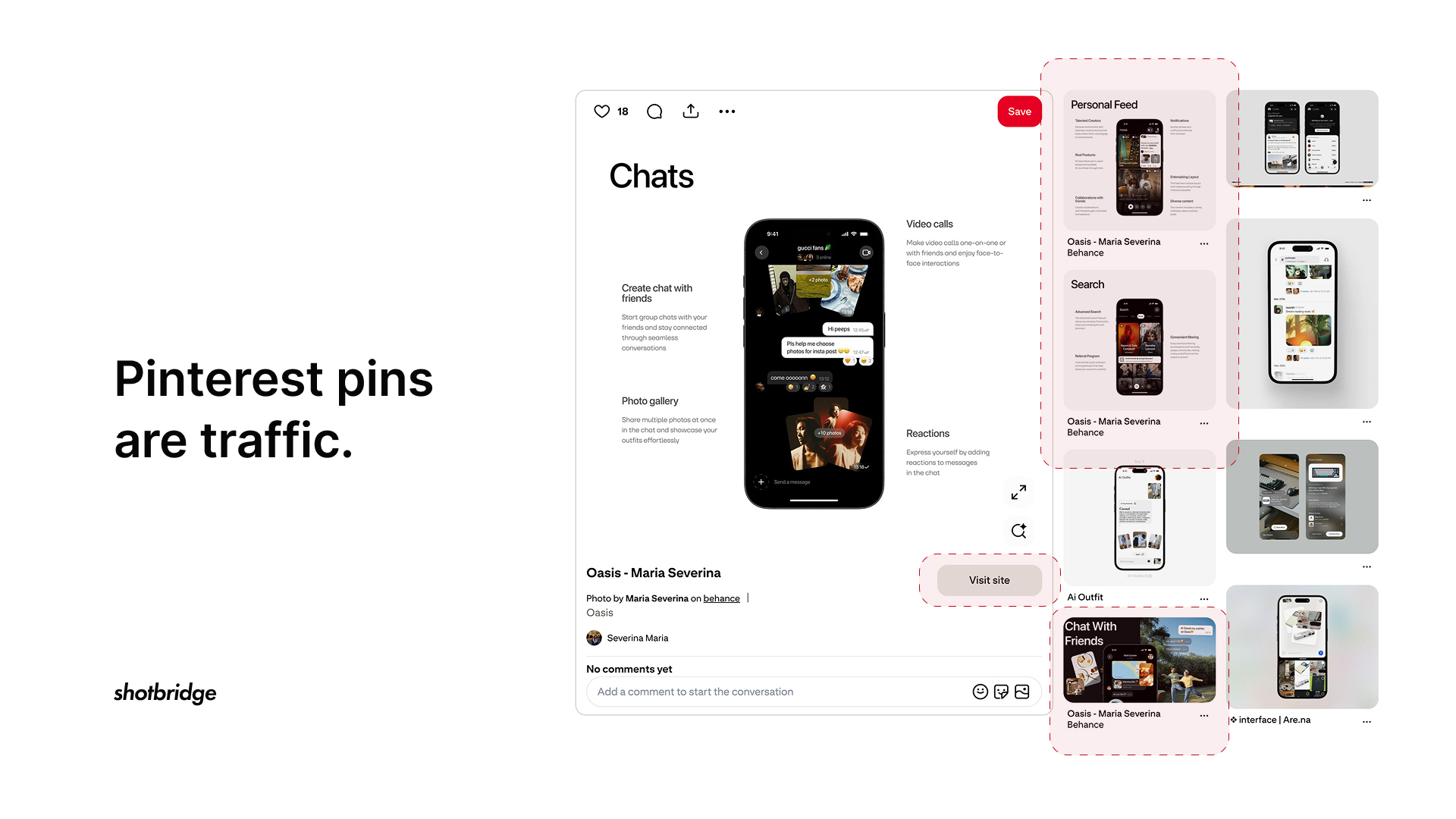
Pinterest pins are traffic. Dribbble shots are not.
Every Pinterest pin links directly to a URL of your choice. Your portfolio, your contact page, a specific project case study. Someone saves your work, clicks through, and lands exactly where you want them.
Dribbble doesn't allow that. You can't include a website link in a shot description. The work stays on Dribbble, the conversation stays on Dribbble, and the viewer has no path to you unless they already know to look for your profile.
Why the manual way doesn't scale
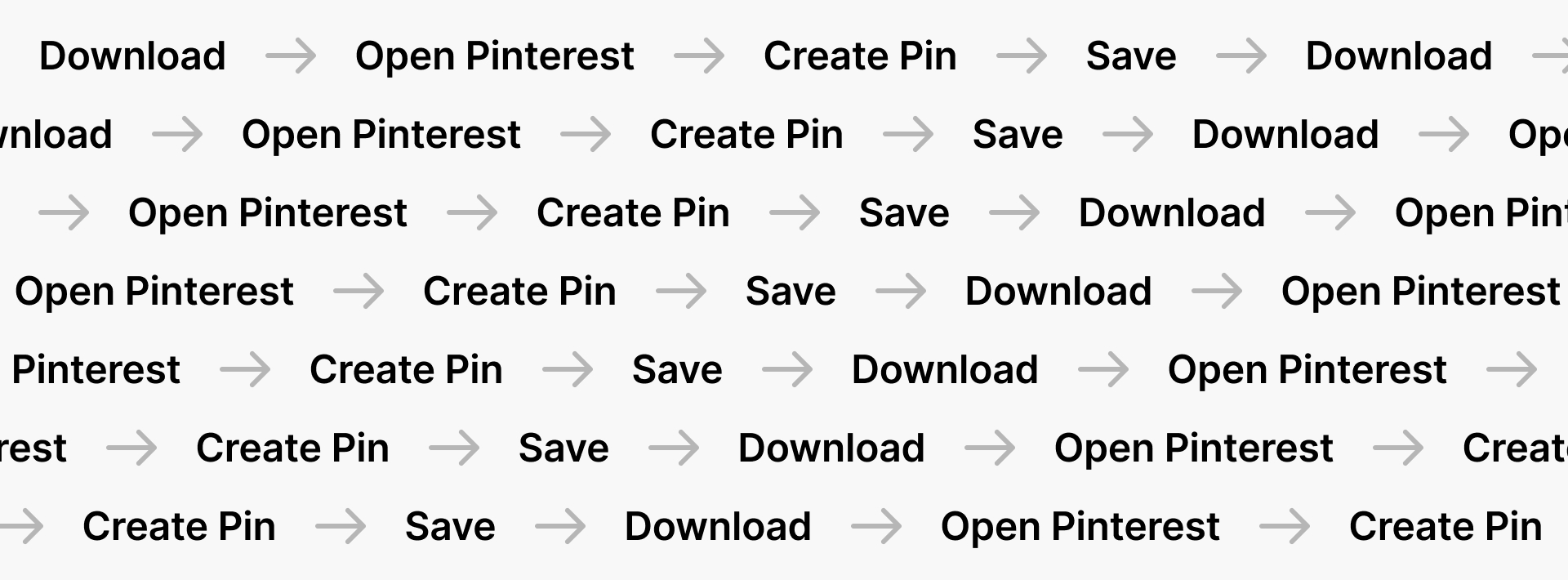
Say you just posted a shot on Dribbble and want it on Pinterest too. Without automation, here's what that looks like:
- Open the shot, download the image.
- Open Pinterest, navigate to your board.
- Create a new pin. Upload the image.
- Write a title and description. Again, even though you already wrote one on Dribbble.
- Save. Done.
Five minutes per shot if you're fast. Post twice a week and you're spending 40 minutes a month on pure copying. No creative work produced.
Most designers try it for a few weeks, then quietly stop. Their Pinterest board sits half-empty at 12 pins. The follow-through isn't a character flaw. The friction is just too high for something that feels like admin work.
How ShotBridge automates it
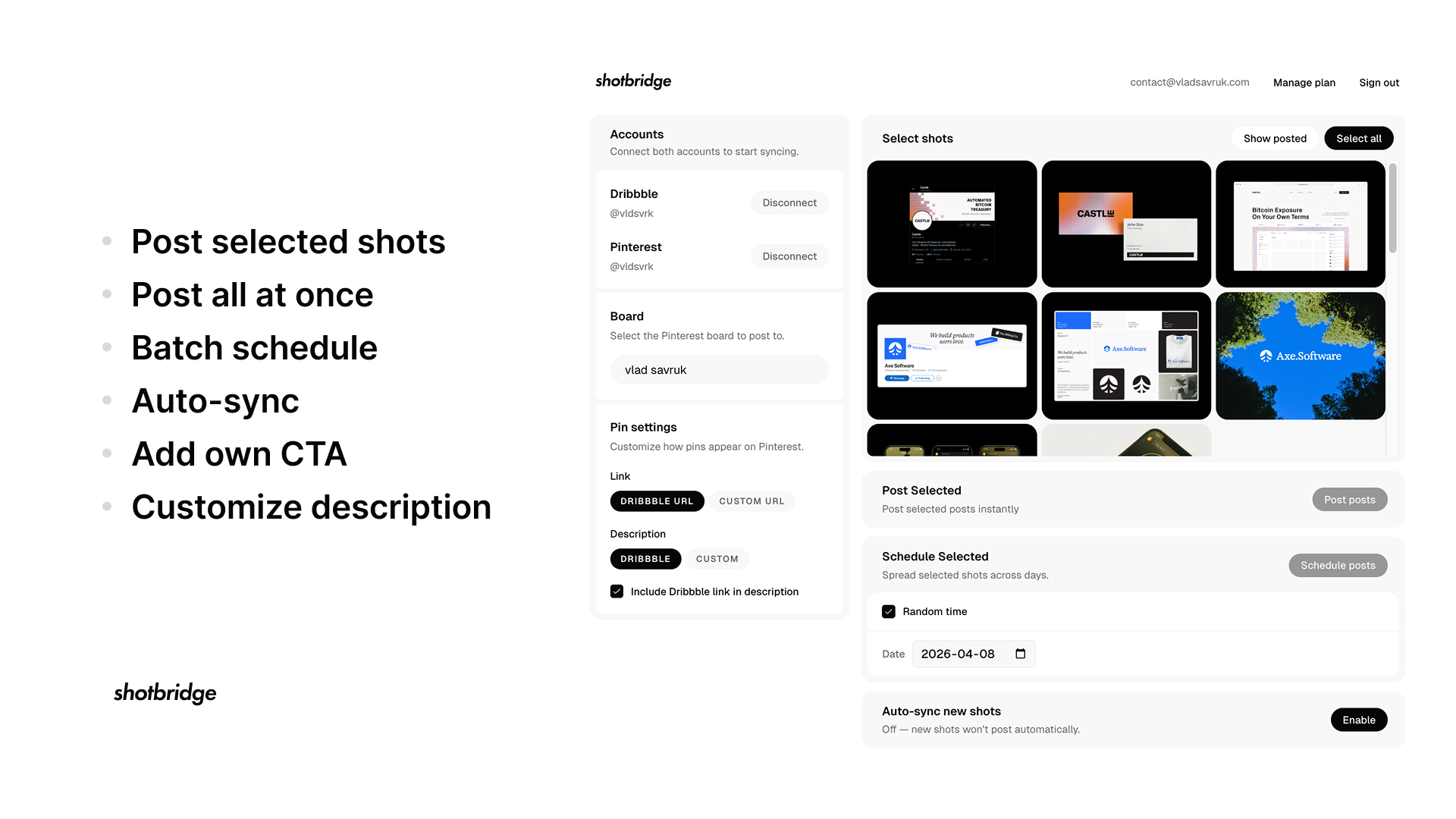
ShotBridge connects your Dribbble and Pinterest accounts, then handles the cross-posting. New shots go to Pinterest automatically. Or you pick which ones to post. Or you schedule them to go out on a cadence over time.
You set it up once. After that, every Dribbble shot is also a Pinterest pin, without you thinking about it. The rest of this guide walks through exactly how.
Step 1: Connect your Dribbble account
From the ShotBridge dashboard, click Connect Dribbble. You'll be sent to Dribbble's standard OAuth flow. Log in, approve read access to your shots, and you're back.
ShotBridge only reads your shots. It doesn't store your password or post to Dribbble on your behalf.
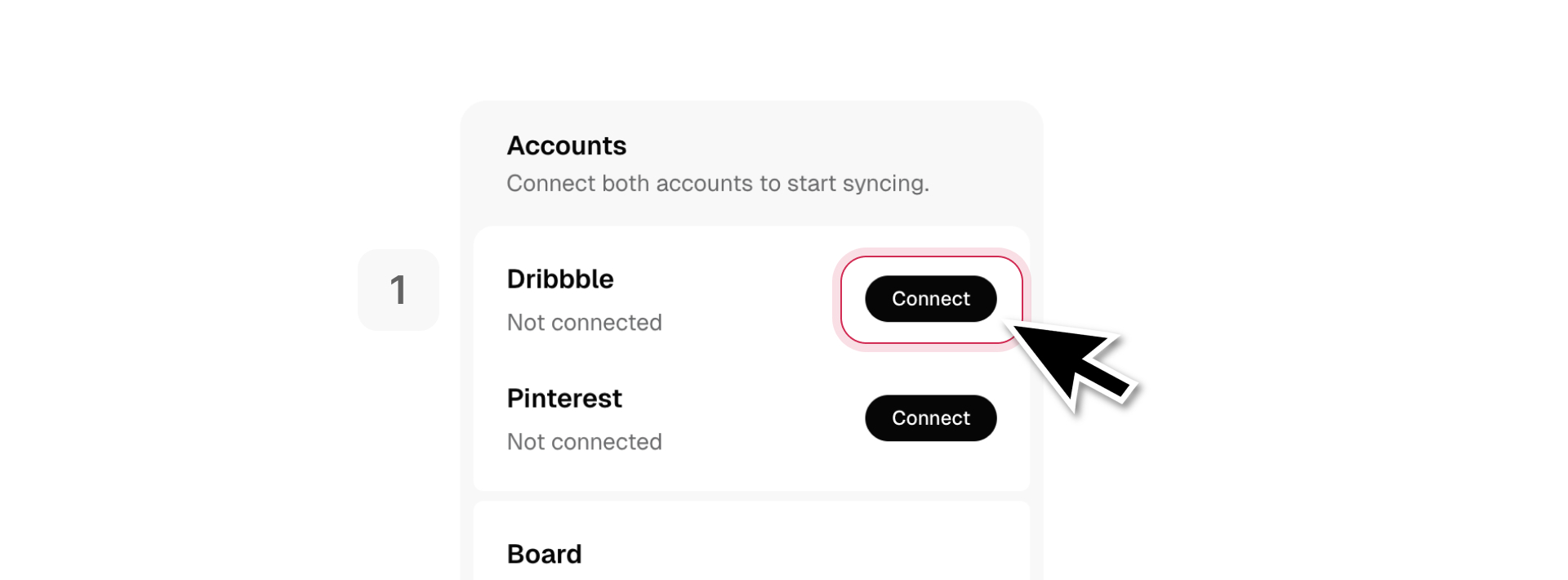
Step 2: Connect your Pinterest account
Same process. Click Connect Pinterest and complete Pinterest's OAuth flow. ShotBridge requests permission to create pins on your behalf. That's the only thing it asks for.
If you don't have a Pinterest account yet, you'll need to create one first. A personal account works fine. No business account required, though switching to a business account later unlocks Pinterest Analytics, which is worth having once you have a body of pins.
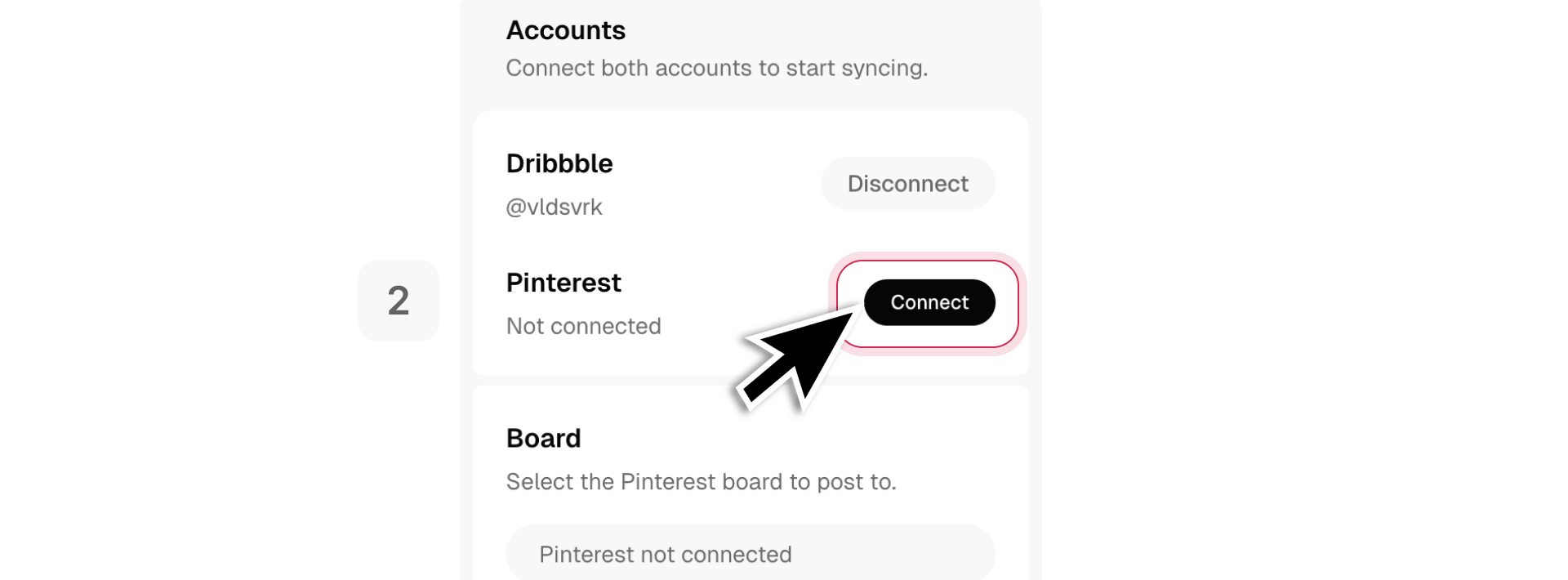
Step 3: Choose a board
Pick which Pinterest board your shots should land on. If you don't have a dedicated design board, create one in Pinterest first. Something like "Design Work" or just your name works.
One board is enough to start. You can always route different shot types to different boards later once you have a sense of how Pinterest organizes your work.
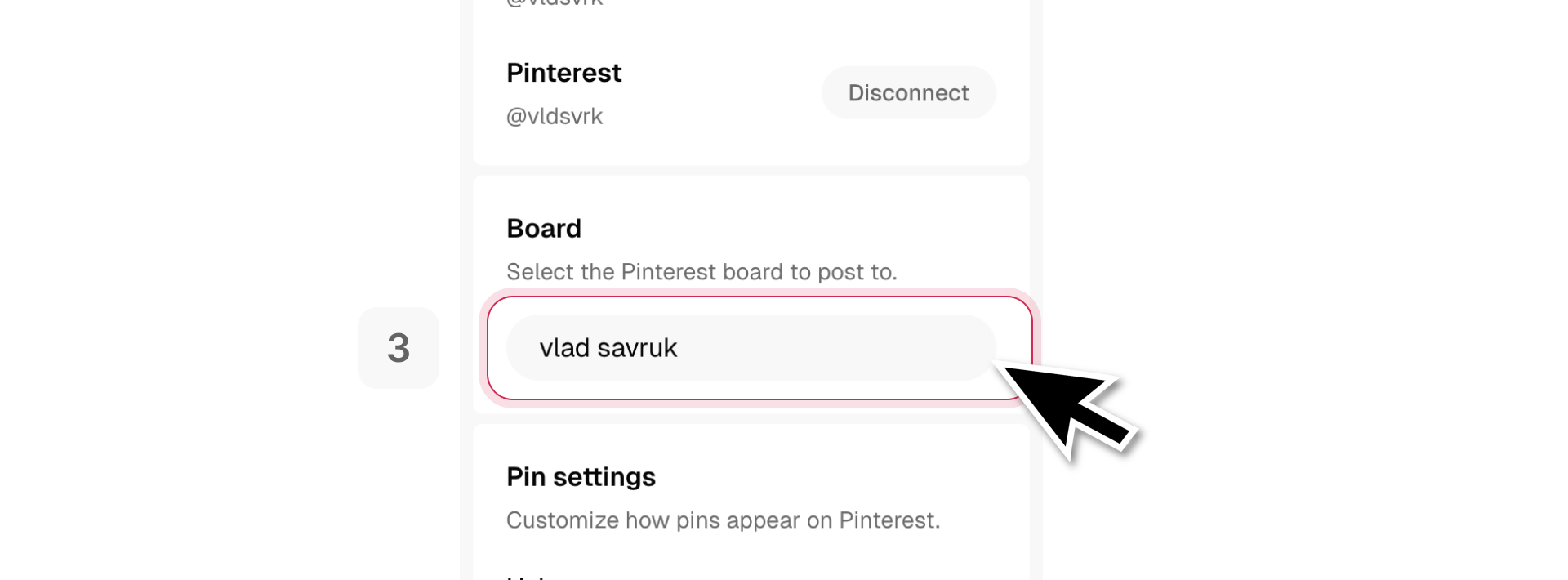
Step 4: Post, schedule, or let it sync automatically
Three ways to use it, depending on what you need:
Post one
Pins your most recent Dribbble shot immediately. Good for trying the connection before committing to anything. Free, no credit card required.
Post selected
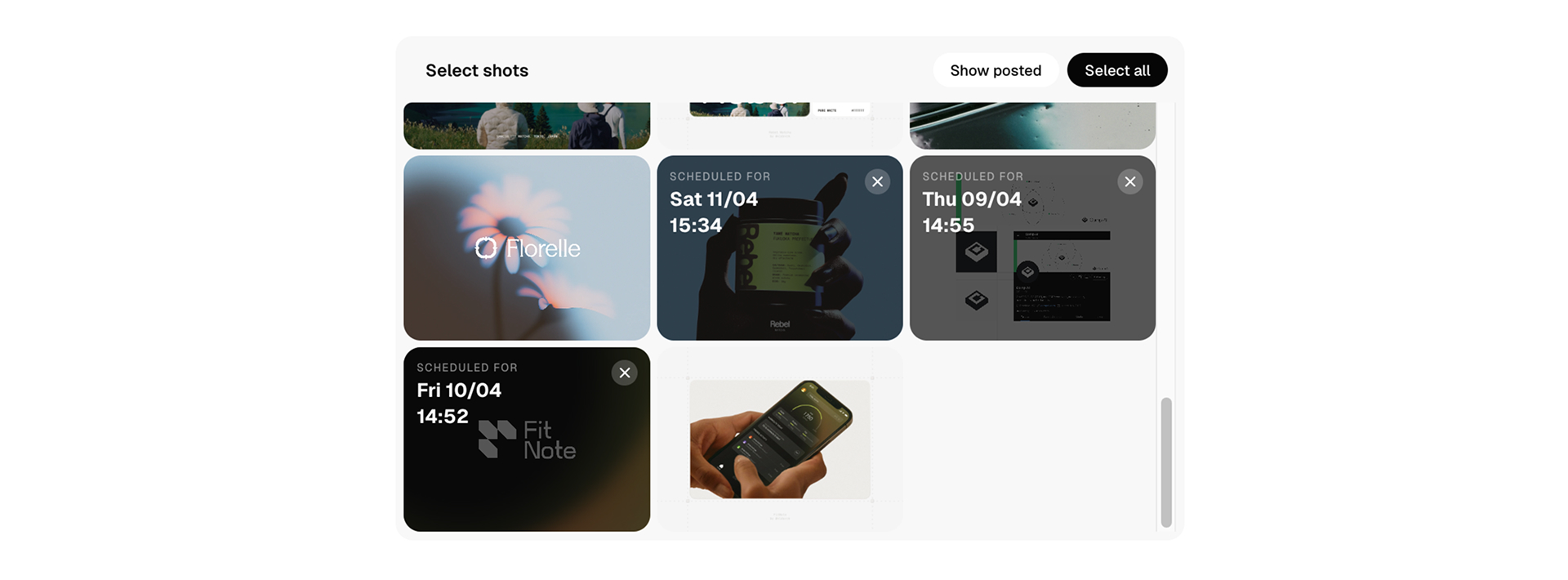
Browse your Dribbble portfolio, check the shots you want to pin, and post them in one go. Useful when you're catching up on older work or want control over what goes out.
Auto-sync
ShotBridge checks for new Dribbble shots every 15 minutes. Post to Dribbble, and Pinterest gets it too. Automatically. This is what most designers end up using. You stop thinking about it entirely.
Scheduling is also an option if you'd rather drip shots out over time instead of posting everything at once. Useful when you're migrating a large backlog and don't want to flood your board in a single afternoon.

Stop copying shots by hand.
Connect Dribbble and Pinterest once. Post one shot free. No card needed.